Quick Find
Quick Find is the fastest way to jump to anything in Neatbase. Start typing and it searches every notebook and every note at once — then open the result with a click or the keyboard. It's especially handy when you can't remember which notebook a note lives in.
It has a second mode for links, so you can search every URL you've saved and open one straight from the palette.
Opening Quick Find
- On Mac and iPad (when the sidebar is shown side-by-side), click Quick Find at the top of the sidebar.
- On iPhone (and iPad in compact view), tap the search icon in the notebook toolbar.
- Or press
Cmd+Kon Mac, or on iPad with a hardware keyboard.
Recent notes
Open Quick Find without typing anything and you get your 20 most recently edited notes, so the thing you were just working on is usually one keypress away. Start typing and search results replace them.
Switching modes
Click the magnifying glass on the left of the search field to switch between:
- All — notebooks and notes (the default)
- URLs — every link saved in a URL field
On Mac you can also press Cmd+1 for All and Cmd+2 for URLs.
Searching links
In URLs mode, Quick Find lists the links you've saved by their page titles, each with the site's icon. Press Return to open the link in your browser — you don't have to find the note first.
Type to narrow the list. It matches the site first, then the field name, then the note's title. That order matters: a field called "Pricing Page" or "Docs" usually describes a link far better than the note it lives on, and a note called "Q3 Vendor Review" might have several links that have nothing to do with its title.
You get one row per link, not per note or per field — so a vendor with a website, a docs page, and a support portal gives you three separate results rather than hiding two of them. That holds whether the links live in separate URL fields or in a single field with multiple links turned on.
Each row leads with the link's title, with the note and field it lives in underneath — like Staples › Website. The raw URL isn't displayed, but searching still matches it, along with the title and the site — so a link is findable by whichever of them you remember. To open the note instead of the link, press Cmd+Return.
With nothing typed, you get your 20 most recent links.
Searching
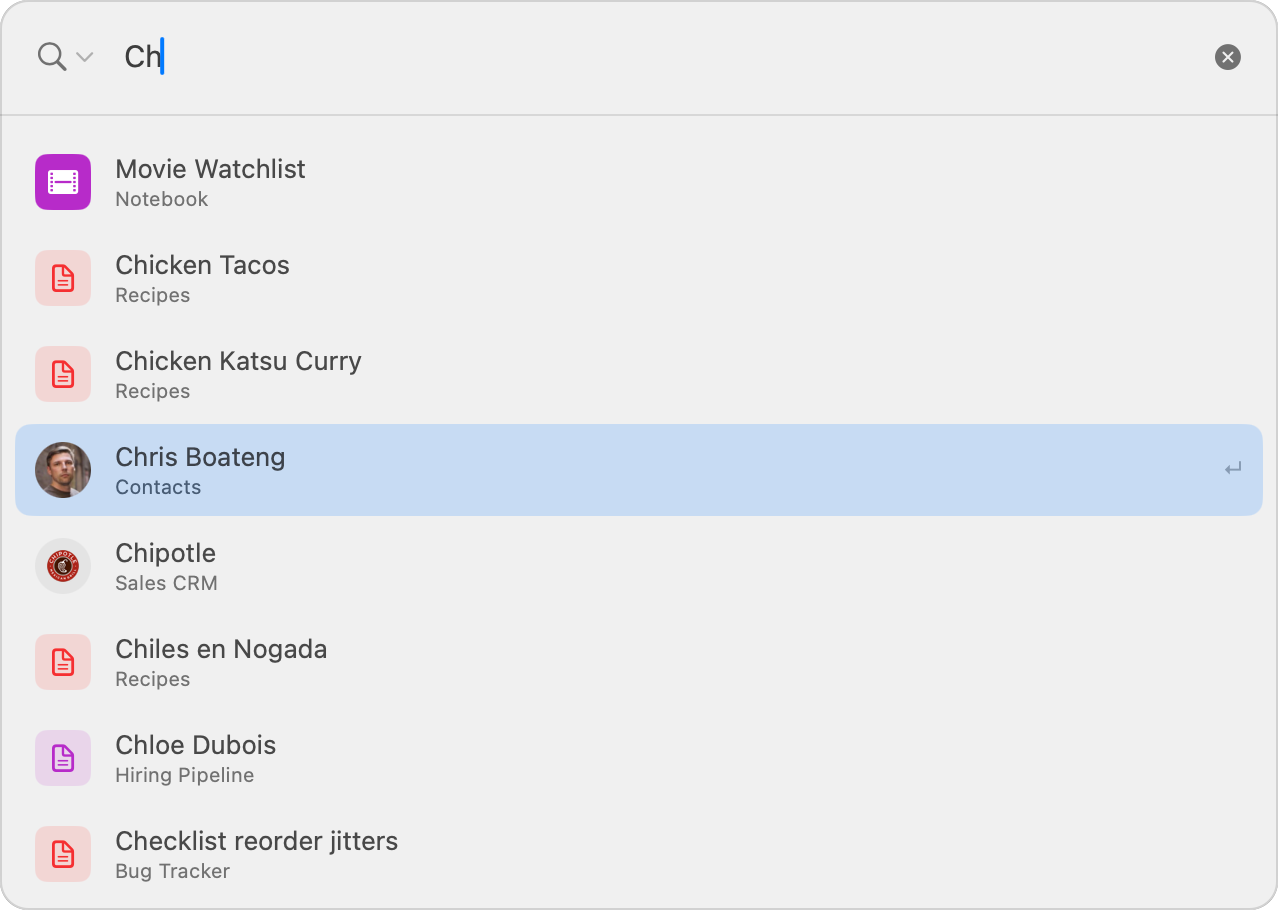
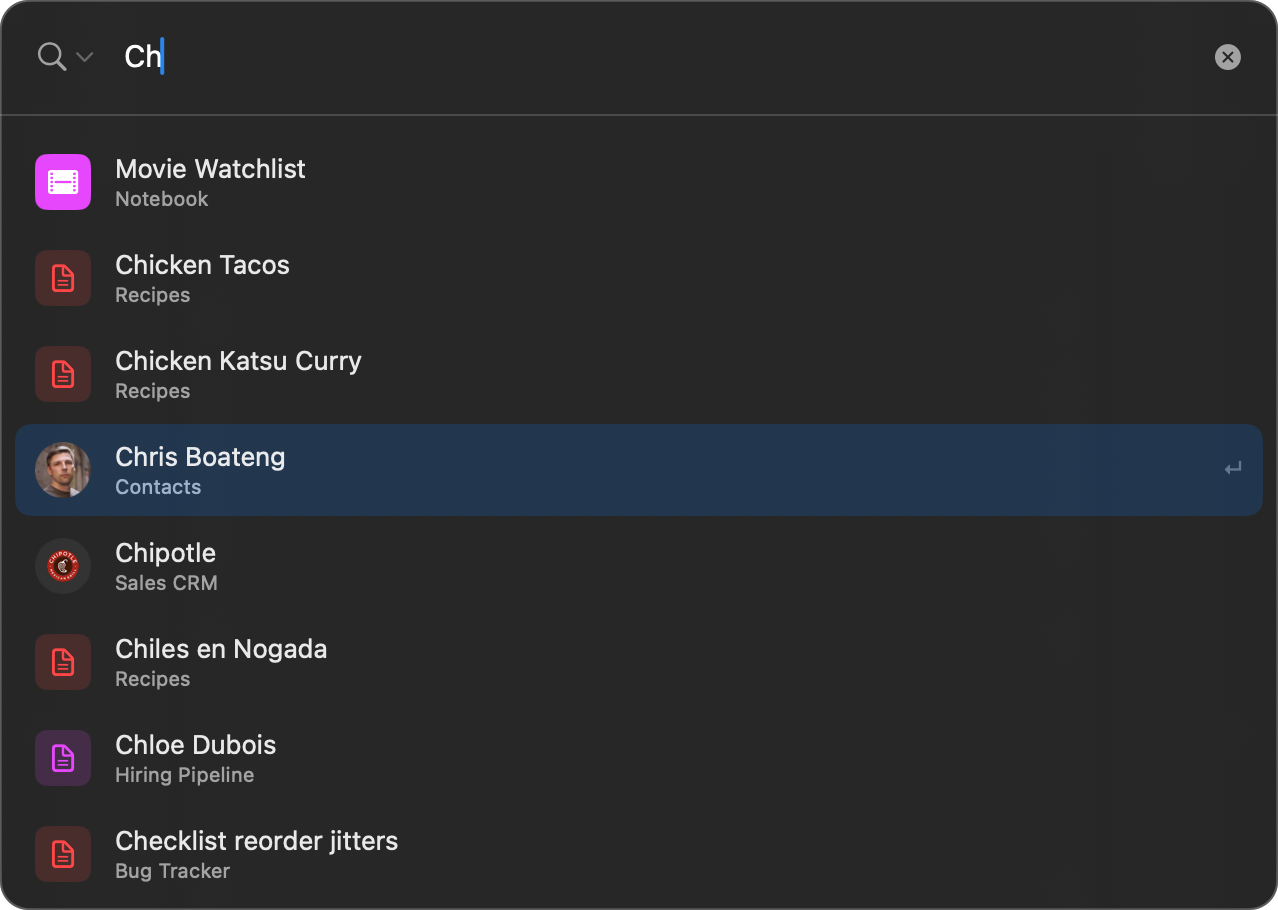
Type a few letters. As you type, Quick Find shows matching:
- Notebooks — matched by name.
- Notes — matched by their title and their content (any field value).
Results are ranked so the closest matches come first: names and titles that begin with what you typed appear above matches buried in the middle of a word, and note-title matches appear above notes that only match somewhere in their content.
Searching Inside One Notebook
To search a single notebook instead of everything, type its name followed by a colon:
Recipes: pastaQuick Find then only looks at notes in that notebook, matching their titles and any field value. Leave the part after the colon empty — Recipes: — and you get every note in that notebook, most recently edited first, which is a quick way to browse.
There's a shortcut for this: highlight a notebook in the results and press ⌘↵ (or click the Search button on its row) to drop into that notebook without typing its name. Deleting the colon takes you back to searching everything.
This is also why notebook names can't contain a colon — the app removes one if you type it into a name, so that Name: always means "search inside this notebook."
Opening a result
- Click any result to open it, or
- Use the ↑ / ↓ arrow keys to move through the list and press Return to open the highlighted result.
- Press Esc to close Quick Find without opening anything.
Opening a notebook selects it in the sidebar. Opening a note takes you straight to that note inside its notebook. In URLs mode, Return opens the link in your browser instead — use Cmd+Return for the note behind it.
Tips
- Quick Find searches everything you can access, including notebooks that have been shared with you.
- On Mac and iPad, you can stay entirely on the keyboard:
Cmd+K, type, arrow down,Return. - Saved a link and can't remember where?
Cmd+K,Cmd+2, type the site name,Return. - Looking to filter the notes within one notebook instead? Use the note list's own search — in the toolbar on Mac and iPad, in the bottom bar on iPhone. See Notes View.